MIUI Decrypt Support publishes practical guidance for MIUI Secret Album recovery, Xiaomi privacy, and .lsa/.lsav troubleshooting so users can make informed decisions before they upload.
Every blog article is designed to match the product experience: clear explanations, realistic recovery expectations, and a direct path back to the decrypt workflow.
Related articles
Explore more MIUI Gallery recovery guides from the LSA Decrypt team.
Upload your encrypted .lsa file and LSA Decrypt will validate the metadata, run the AES decryption, and stream the photos back to you — no Xiaomi device required.
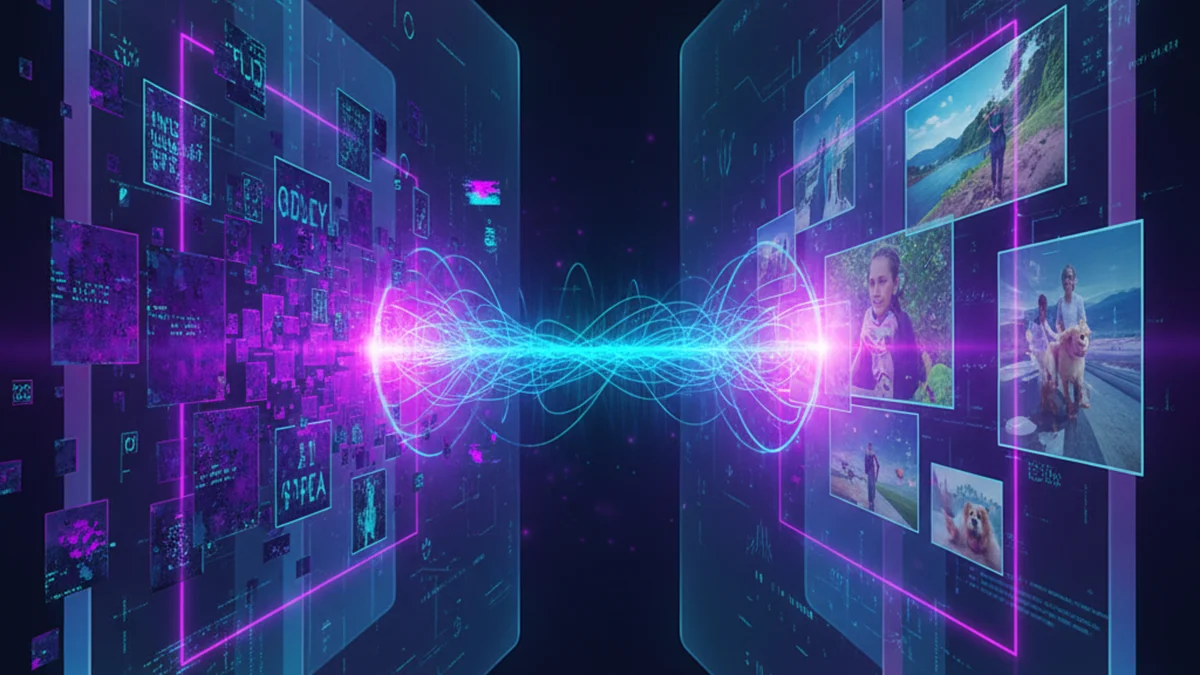
The moment an LSA viewer unlocks an encrypted container: metadata is parsed, the key is derived, and the photo inside becomes visible again.
You found an .lsa file on your Xiaomi phone, copied it to your computer, and double-clicked it — nothing opened. Windows Photo Viewer refused it. Apple Photos refused it. Even VLC and Photoshop could not make sense of it. That is not an error on your side. An .lsa file is not a photo in any format that standard apps understand. It is an encrypted container built by Xiaomi's MIUI Gallery, and the only way to see what is inside is to decrypt it first — or use our free LSA file viewer for a quick in-browser preview.
This guide covers everything you need: what an .lsa file actually contains, why every regular viewer fails to open it, where to find the files on your device, and how to decrypt and view the photos step by step — on Windows, Mac, or Linux, without installing anything and without needing your Xiaomi phone to be powered on.
What is an .lsa file?
LSA stands for Local Storage Archive. When you move a photo into the Secret Album inside Xiaomi's MIUI Gallery app, MIUI does not simply hide it in a hidden folder — it encrypts the photo and wraps it in a custom container format with the .lsa extension. The same applies to videos, which get the .lsav extension.
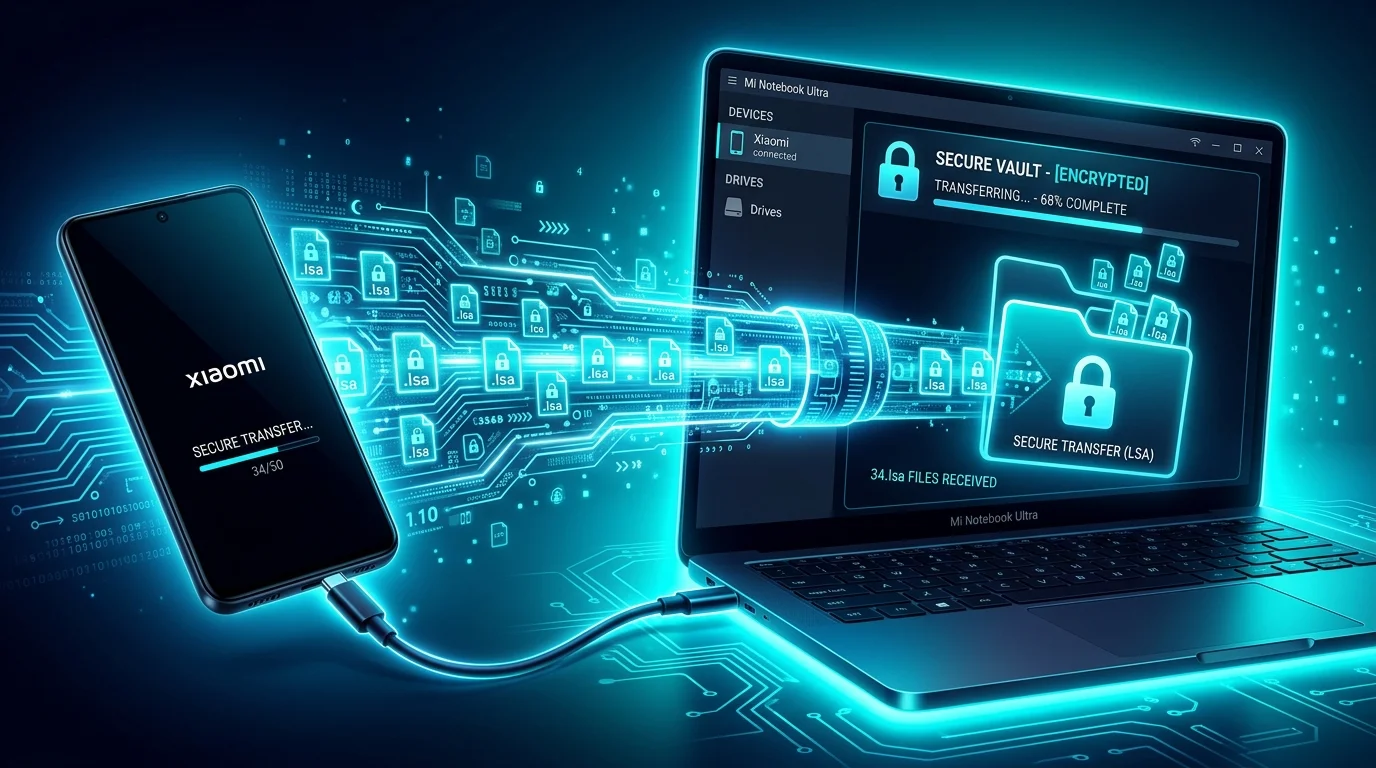
The result is a file that looks completely opaque to any software that does not know the MIUI encryption scheme. You will find these files on your device at a fixed path inside internal storage — but copying them to your computer only gives you the encrypted container, not the original photo.
The .lsa format exists across all MIUI versions from MIUI 12 through HyperOS. The encryption scheme itself has not changed between versions, which means a single decryption tool handles all of them.
Inside the .lsa container: what the file is made of
This section is for readers who want to understand the technical structure. If you only want to view your photos, skip ahead to the step-by-step guide.
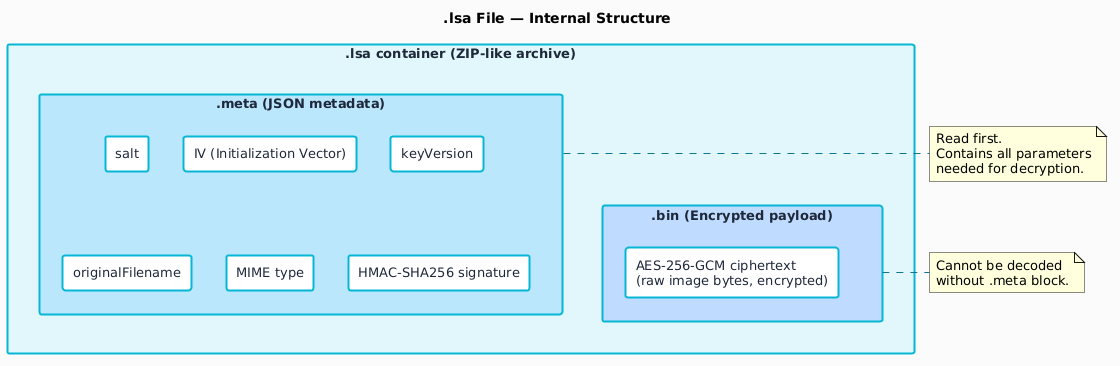
An .lsa file is built like a ZIP archive with two entries inside: a metadata block and an encrypted payload. Neither entry alone is enough to recover the photo — you need both.
The internal structure of an .lsa file: a ZIP-like container with two entries, .meta (JSON metadata) and .bin (AES-256-GCM encrypted payload). The .meta block contains the salt, IV, keyVersion, original filename, MIME type, and HMAC signature needed for decryption. The .bin block contains the raw encrypted image bytes that cannot be decrypted without the metadata.
The .meta entry — the key to everything
The .meta file is a JSON document stored unencrypted inside the container. It holds six critical fields:
salt — a random value used as input to the MIUI key derivation function. Different for every file.
IV (Initialization Vector) — a random nonce required by AES-256-GCM. Ensures that the same photo encrypted twice produces different ciphertext.
keyVersion — identifies which MIUI key derivation path to use. Matches the MIUI version that created the file.
originalFilename — the photo's original name as MIUI stored it, often a UUID rather than a human-readable name.
MIME type — the original image format: image/jpeg, image/heic, or image/png.
HMAC-SHA256 signature — a cryptographic integrity check. Decryption is refused if the signature does not match, preventing corrupted or tampered files from producing garbage output.
The .bin entry — the encrypted photo
The .bin file is the raw photo bytes locked behind AES-256-GCM encryption. AES-256-GCM is an authenticated encryption scheme, which means it simultaneously encrypts the data and produces an authentication tag. If even a single byte of the ciphertext is changed after encryption, decryption fails cleanly rather than producing corrupted output.
Without the metadata block a viewer cannot even start decryption — it does not know the IV or the salt. Without the correct AES key it cannot finish. This is why renaming photo.lsa to photo.jpg produces nothing: the bytes inside are still encrypted regardless of the file extension.
Every photo viewer — from Windows Photos to Lightroom to GIMP — identifies file types by reading the first few bytes, known as the magic number. JPEG files start with FF D8 FF. PNG files start with 89 50 4E 47. HEIC files start with 00 00 00 18 66 74 79 70.
An .lsa container starts with the ZIP local file header signature 50 4B 03 04. A viewer that recognises this might try to treat it as a ZIP archive and extract the contents — but even then it would find the .bin entry full of AES-256-GCM ciphertext, which looks like high-entropy random data. There are no pixel values, no EXIF headers, no color profiles. Nothing to render.
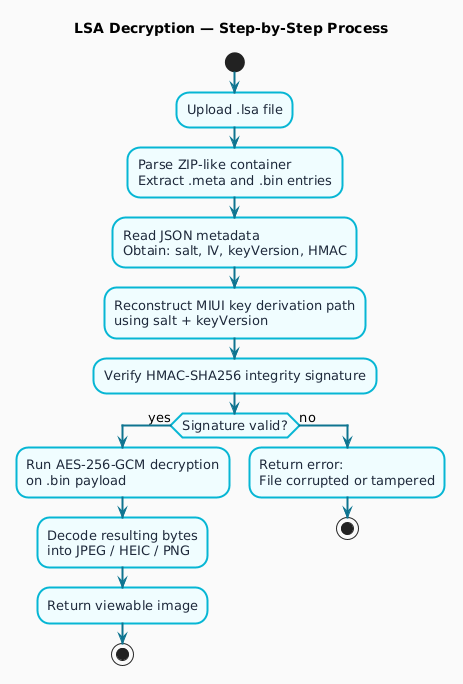
A viewer that can open .lsa files must perform six distinct operations in sequence — none of which standard photo apps are built to do:
Parse the ZIP-like container and extract the .meta and .bin entries.
Parse the JSON metadata to extract the salt, IV, keyVersion, and HMAC signature.
Reconstruct the MIUI key derivation path using the salt and keyVersion identifier.
Verify the HMAC-SHA256 integrity signature before attempting any decryption.
Run AES-256-GCM decryption on the .bin payload using the derived key and IV.
Decode the resulting plaintext bytes into a viewable image format — JPEG, HEIC, or PNG.
LSA Decrypt handles all six steps automatically on the server side. You upload the file, the pipeline runs, and you get a preview of the recovered image within seconds.
The six-step LSA decryption process: 1) Upload .lsa file, 2) Parse ZIP-like container and extract .meta and .bin entries, 3) Read JSON metadata to obtain salt, IV, keyVersion, and HMAC, 4) Reconstruct MIUI key derivation path using salt and keyVersion, 5) Verify HMAC-SHA256 integrity signature, 6) If signature valid, run AES-256-GCM decryption on .bin payload, decode resulting bytes into JPEG/HEIC/PNG, and return viewable image. If signature invalid, return error indicating file is corrupted or tampered.
Where to find .lsa files on your Xiaomi device
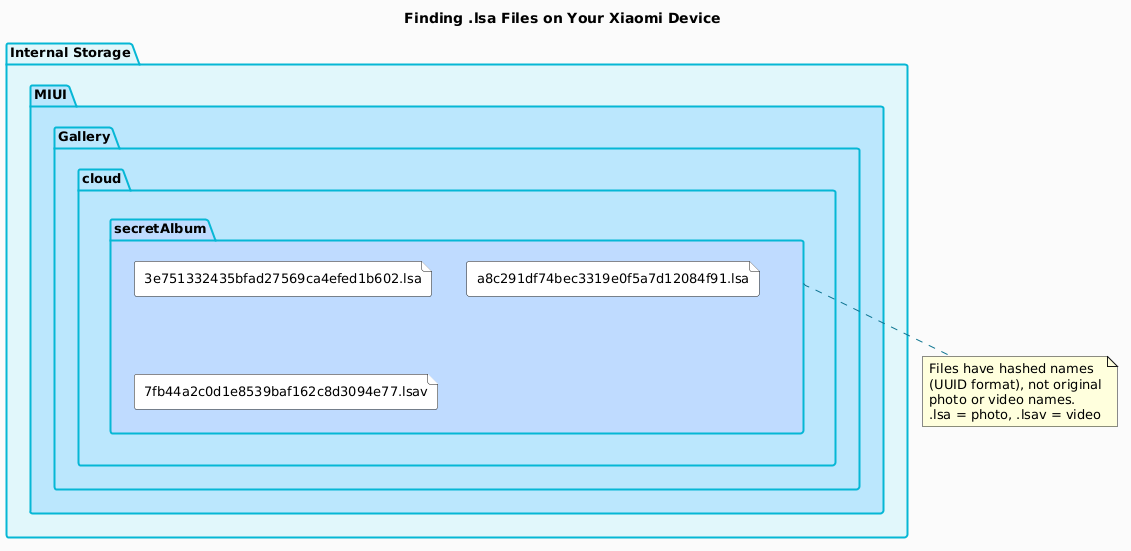
MIUI stores Secret Album files in a fixed location inside internal storage. The path is the same across all Xiaomi, Redmi, and POCO devices running MIUI 12 and later:
The files inside this folder have hashed names — long hexadecimal strings rather than the original photo names. For example: 3e751332435bfad27569ca4efed1b602.lsa. This is normal. The original filename is preserved inside the .meta block and is restored automatically when you decrypt the file.
The path to .lsa files inside Xiaomi internal storage: Internal Storage → MIUI → Gallery → cloud → secretAlbum
Accessing the files on Windows
Connect your Xiaomi phone to a Windows PC using a USB cable. When the phone prompts you to select a connection type, choose File Transfer (also labelled MTP on some MIUI versions). The phone will appear as a drive in File Explorer. Navigate to This PC → [Phone name] → Internal shared storage → MIUI → Gallery → cloud → secretAlbum and copy the .lsa and .lsav files to your desktop before uploading them.
If the secretAlbum folder appears empty even though you know the Secret Album contains photos, try restarting the phone with the USB cable connected, or use a different USB cable — some cables only carry power and do not transmit data.
Accessing the files on macOS
macOS does not support MTP natively. You need a third-party tool to browse Xiaomi's internal storage over USB. Android File Transfer (free, from Google) or OpenMTP (free, open-source) both work reliably. Install one, connect the phone in File Transfer mode, and navigate to the same path as above.
An alternative that avoids USB entirely: use the MIUI File Manager app to copy the secretAlbum folder to a cloud storage location such as Google Drive, then download it to your Mac.
Accessing the files on Linux
Most Linux desktop environments mount Android devices automatically via gvfs-mtp when you connect the phone in File Transfer mode. If auto-mount does not work, install jmtpfs or go-mtpfs and mount manually. The folder path inside the mount point is the same as on Windows.
If your phone will not boot
A broken or non-booting phone does not prevent recovery if the storage is still readable. Our guide on recovering Secret Album files from a non-booting Xiaomi covers ADB pull, TWRP file manager, and EDL extraction for devices that will not reach the home screen.
How to view photos inside an .lsa file — step by step
The process below takes roughly two to three minutes from start to finish. No software installation is required. The tool works in any modern browser on Windows, Mac, or Linux.
Confirm the file is a genuine MIUI Secret Album export. The extension must be exactly .lsa (not .lsa.txt or any other variation) and the file should be at least a few kilobytes. Files under 1 KB are usually index or placeholder entries, not photo containers.
Open the decrypt page. Go to lsadecrypt.online/en/decrypt. You will see an upload zone in the centre of the page. Drag your .lsa file directly onto it, or click Select file and browse to the file. If you have multiple files, you can ZIP them together first — the service processes each .lsa inside the ZIP in sequence.
Watch the validation steps complete. A real-time status stream shows each stage of the pipeline: container parsing, metadata extraction, HMAC verification, key derivation, and decryption. This typically takes two to five seconds for photos. Larger files take longer.
Preview the recovered photo. Once decryption finishes, a preview panel loads in the browser. You can zoom in and confirm the image is the one you expected before downloading. Guest users can preview photos without creating an account.
Download the result. Click the download icon next to the file. The photo is saved as a standard JPEG or HEIC file with the original filename restored from the metadata. The download link stays active for 24 hours, after which the server removes the temporary files automatically.
If the upload fails or the file cannot be decrypted, our MIUI Gallery troubleshooting guide lists the most common error messages and what causes them — including files that were partially transferred over USB and files from third-party apps that mimic the .lsa extension without using MIUI's encryption scheme.
File size limits and registered accounts
Guest users (no account required) can decrypt and preview .lsa photos up to 36 MB. This covers the vast majority of photos taken by Xiaomi cameras, which typically produce JPEG files between 3 MB and 15 MB, and HEIC files between 1 MB and 8 MB.
Registered users can process photos up to 48 MB and videos (.lsav) up to 10 GB. Video decryption requires a registered account because server-side processing time and storage for large video files require credits to sustain the service.
Creating an account also unlocks the ability to delete processed files manually before the 24-hour automatic removal, and to access files you uploaded in a previous session within the retention window.
Open .lsa files on Windows, Mac, Linux, and mobile
Because the decryption runs entirely in the browser and on our servers, the operating system on your computer does not affect the result. The same upload-and-view flow works identically on every platform:
Windows 10 / 11 — Chrome, Edge, and Firefox all work. No plugins or extensions needed. Copy the .lsa files from your phone as described above, then upload from your desktop.
macOS (Intel and Apple Silicon) — Safari, Chrome, and Firefox all work. Use Android File Transfer or OpenMTP to copy files from the phone.
Linux — any Chromium-based browser or Firefox. Mount the phone via gvfs-mtp or jmtpfs, copy the files, and upload.
Android mobile browser — the upload zone works on mobile Chrome and Firefox. You can select files directly from internal storage using the file picker, which means no computer is needed at all if you are on Android. Open the page on your Xiaomi phone and navigate to the secretAlbum folder in the picker.
iOS mobile browser — the upload zone works in Safari, but the iOS file picker does not expose Android app directories. If the .lsa files are already on your iOS device (transferred via cloud storage), you can select them from the Files app.
After viewing: keeping your photos accessible long-term
Decrypting an .lsa file produces a standard JPEG or HEIC that any photo app, cloud service, or device can open without any further intervention. At that point the Secret Album protections are gone, so the file needs to be treated the same way you would treat any sensitive photo.
Rename the file immediately after downloading. LSA Decrypt restores the original filename from the metadata, but MIUI often stores files with UUID-style names rather than meaningful ones. Rename to something descriptive as soon as you download.
Back up to encrypted cloud storage. The MIUI encryption is now gone. If the photo is sensitive, store it in a cloud provider that offers client-side encryption (such as Proton Drive or an encrypted Cryptomator vault on top of any provider), or keep a local copy on an encrypted drive.
Re-import to Secret Album if you only needed to verify the file. If your phone is working again and you decrypted only to check that the file was recoverable, drag the JPEG back into MIUI Gallery's Secret Album. MIUI will re-encrypt it automatically.
Back up before a factory reset. If you are resetting your phone, copy the entire secretAlbum folder to a computer first. After the reset MIUI generates new encryption keys, making the old .lsa files permanently unreadable — even by the same device. Our Secret Album backup guide covers this in detail.
Delete the temporary download after archiving. The 24-hour server link expires automatically, but clear the file from your Downloads folder once it is safely stored elsewhere to avoid leaving unprotected copies on your system.
The .lsav format is the video equivalent of .lsa. It uses the same ZIP-like container structure with a .meta block and an encrypted .bin payload. The encryption scheme is identical — AES-256-GCM with HMAC-SHA256 integrity verification.
The practical differences are file size and processing time. Videos from Xiaomi cameras recorded in 4K can easily exceed 500 MB to 2 GB, which is why video decryption requires a registered account. Photos decrypt in seconds; a 1 GB video may take a minute or two depending on server load.
The output is a standard MP4 file that plays in VLC, Windows Media Player, QuickTime, and any other video player. The original video quality is preserved — no re-encoding happens during decryption.
MIUI Decrypt Support publishes practical guidance for MIUI Secret Album recovery, Xiaomi privacy, and .lsa/.lsav troubleshooting so users can make informed decisions before they upload.
Every blog article is designed to match the product experience: clear explanations, realistic recovery expectations, and a direct path back to the decrypt workflow.
Related articles
Explore more MIUI Gallery recovery guides from the LSA Decrypt team.
Upload your encrypted .lsa file and LSA Decrypt will validate the metadata, run the AES decryption, and stream the photos back to you — no Xiaomi device required.