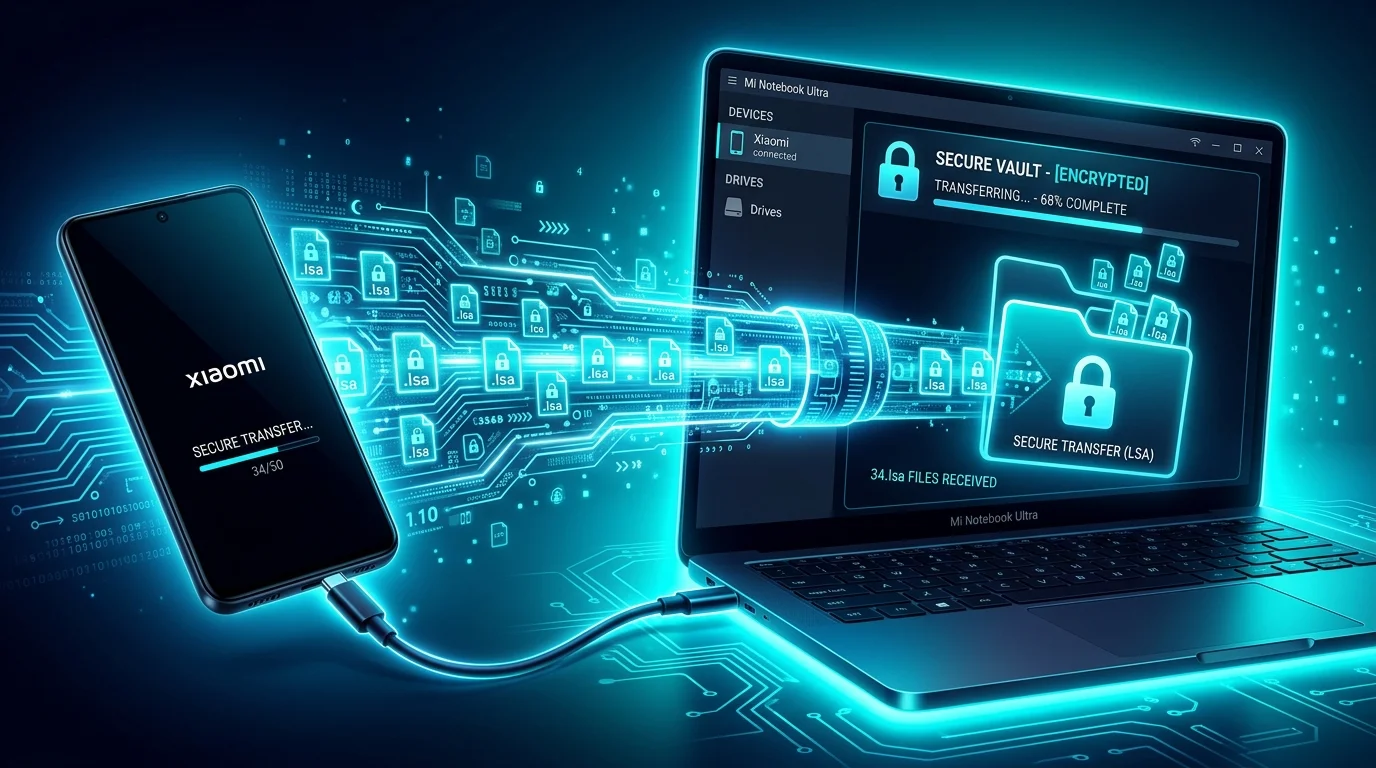
MIUI Decrypt illustration: the critical window between an active Secret Album and a factory reset - transferring encrypted files to safety.
Why you must back up Secret Album before a factory reset
A factory reset erases every byte of user data on your Xiaomi device - including the hidden vault where MIUI stores Secret Album files. Unlike regular photos that sync to Mi Cloud or Google Photos, Secret Album content is encrypted locally and never uploaded to any cloud service by default. Once the reset completes, the encryption keys stored in the device's secure element are destroyed alongside the data they protect. There is no "undo" button.
Many users assume that signing back into the same Mi Account will bring everything back. That works for contacts, app data, and standard gallery photos - but not for Secret Album. MIUI deliberately isolates these files from cloud sync to prevent accidental leaks. The trade-off is that you, the device owner, are solely responsible for backing them up before any destructive operation. If you skip this step, the encrypted .lsa and .lsav containers are gone permanently.
The good news is that the backup process is straightforward if you know where to look. The encrypted files are ordinary files on internal storage - no root access required, no special tools. You just need to copy them to a safe location before you wipe the phone. The rest of this guide walks you through every step in detail so nothing falls through the cracks.
Locate your Secret Album encrypted files
MIUI stores Secret Album exports in a predictable directory structure. Open the built-in File Manager app and navigate to Internal Storage → MIUI → Gallery → cloud → secretAlbum. Inside this folder you will find files with two extensions: .lsa for encrypted photos and .lsav for encrypted videos. Each file is a self-contained container that holds both the ciphertext and the metadata MIUI needs for decryption - learn more about their structure in our LSA / LSAV file format guide.
If the secretAlbum folder is not visible, open File Manager settings and enable Show hidden files. On some MIUI versions (especially MIUI 14 and HyperOS), the directory may be located under MIUI/Gallery/cloud/.secretAlbum with a leading dot. Check both paths. You can also connect the phone to a computer and search for *.lsa across the entire internal storage to catch files stored in non-standard locations.
Take note of how many files you find and their total size. Write these numbers down or take a screenshot - you will use them later to verify the backup copied completely. A typical Secret Album photo weighs between 2 MB and 15 MB as an encrypted container, while video files can be hundreds of megabytes depending on length and resolution.
Back up via USB to a computer
The most reliable way to back up Secret Album files is a direct USB connection to a computer. Plug your Xiaomi phone into your PC or Mac using the original USB cable (or any cable that supports data transfer - charge-only cables will not work). When the connection dialog appears on your phone, select File Transfer (MTP). On Windows, the device appears in File Explorer immediately. On macOS, you need Android File Transfer or a compatible alternative like OpenMFT.
Create a dedicated backup folder on your computer - something descriptive like MIUI-Secret-Album-Backup-2026. Navigate to the secretAlbum directory on your phone and drag every .lsa and .lsav file into the new folder. Do not rename files, do not unzip them, and do not open them in an image viewer. The encryption headers embedded in the first few hundred bytes of each file must remain exactly as MIUI wrote them - altering even a single byte can make the file unrecoverable.
If you have a large collection - say, dozens of videos totaling several gigabytes - the MTP transfer can be slow and occasionally drops files mid-copy. In that case, consider using ADB instead (covered in the next section). For smaller collections of photos, USB drag-and-drop is perfectly fine and the simplest option available.
Back up using ADB
ADB (Android Debug Bridge) provides a faster, more reliable transfer channel than MTP, especially for large batches of files. To use it, enable USB Debugging in Settings → Additional Settings → Developer Options. If Developer Options is not visible, tap MIUI Version seven times on the About Phone screen to unlock it.
With USB Debugging active and the phone connected, open a terminal on your computer and run:
adb pull /sdcard/MIUI/Gallery/cloud/secretAlbum/ ./MIUI-Secret-Album-Backup/
ADB copies files at close to native USB speeds and verifies each transfer internally. If a file fails to copy, ADB reports the error immediately so you can retry. You can also pull individual files by appending the filename to the source path. Once the pull finishes, list the local directory to confirm every file arrived:
ls -lh ./MIUI-Secret-Album-Backup/
Compare the file count and sizes against what you recorded earlier. If everything matches, you have a complete backup. Remember to disable USB Debugging when you are done - leaving it enabled is a security risk, especially on a device you plan to wipe and possibly sell or give away. For more on securing your Xiaomi device, see our Xiaomi privacy and data security guide.
Verify backup integrity before wiping
This is the step most people skip - and the one that causes the most regret. Before you touch the factory reset button, take five minutes to confirm your backup is complete and intact. A corrupted or partial backup is almost as bad as no backup at all.
Start with a simple count: the number of files in your backup folder should match the number you found on the phone. Next, compare total folder sizes. On Windows, right-click the folder and select Properties. On macOS, select the folder and press ⌘ + I. The size should be within a few kilobytes of what File Manager reported on your device. Any file showing 0 bytes is definitely corrupted and must be re-copied.
For extra confidence, generate checksums. On macOS or Linux, run shasum -a 256 *.lsa in the backup folder and save the output. After the factory reset and restore, you can run the same command on the phone-side files to confirm nothing changed during the round trip. On Windows, use certutil -hashfile or a utility like 7-Zip's CRC checker.
Finally, create a redundant copy. Store the backup folder on at least two independent storage devices - your computer's internal drive plus an external USB drive, or your computer plus an encrypted cloud service. If one device fails, you still have the second copy. Only proceed with the factory reset once you have confirmed at least two verified copies exist.
Restore Secret Album after the factory reset
Once your Xiaomi phone has finished the factory reset and you have completed the initial setup wizard, it is time to put the Secret Album files back. Connect the phone to your computer via USB and select File Transfer (MTP) again. Navigate to the phone's internal storage and look for the MIUI/Gallery/cloud/secretAlbum directory. On a freshly reset device, this folder likely does not exist yet - create the full path manually.
Copy all the .lsa and .lsav files from your backup into the newly created secretAlbum folder. Once the transfer completes, disconnect the phone and open MIUI Gallery. Tap into Secret Album and wait a moment for the Gallery's media scanner to index the restored files. They should appear as they did before the reset - still encrypted, still protected by the same Secret Album PIN.
If the files do not appear immediately, try restarting the Gallery app or rebooting the phone. MIUI's media scanner sometimes needs a nudge after a fresh install. If the files still do not show up, verify you placed them in the correct directory path and that the extensions are exactly .lsa or .lsav - some file managers silently append .txt or change the case during transfer.
Keep in mind that the restored files are still encrypted. To actually view the photos and videos, MIUI needs the matching encryption context from your account and device. If you signed into the same Mi Account and used the same Secret Album PIN, everything should work seamlessly. If the account or PIN changed, you may need a dedicated decryption tool - head to our decryption page and upload the files directly.
Emergency recovery if you already reset without a backup
If you are reading this section, the factory reset has already happened and you did not back up Secret Album first. Take a breath - the situation is serious but not always hopeless. The outcome depends on whether any copy of the encrypted files survives somewhere outside the device.
Check everywhere: Mi Cloud backups (even partial ones), old computer folders from previous transfers, SD cards you may have used, shared drives, messaging apps where you might have sent a file to yourself, and email attachments. Even a single .lsa file recovered from any of these sources can be decrypted. The encryption metadata is self-contained inside each file, so it does not depend on the device that created it.
If you manage to find any .lsa or .lsav files, upload them to LSA Decrypt. Our service reads the encryption headers embedded in each file and recovers the original photo or video without needing access to your old device. The process works regardless of which MIUI version created the file or which Xiaomi model you used. For a full walkthrough of what happens during decryption, read our MIUI Gallery photo recovery guide.
As a last resort, if you used a Xiaomi device with an SD card, the encrypted files may still be on the card even after a factory reset - MIUI does not always wipe external storage during a reset. Insert the SD card into a computer and search for *.lsa and *.lsav files. Even files found in recycled or lost clusters by data recovery software can sometimes be decrypted, provided the header region is intact. If you have questions about whether a particular file is recoverable, check our FAQ or upload it to see what our service detects.
MIUI Decrypt Support publishes practical guidance for MIUI Secret Album recovery, Xiaomi privacy, and .lsa/.lsav troubleshooting so users can make informed decisions before they upload.
Every blog article is designed to match the product experience: clear explanations, realistic recovery expectations, and a direct path back to the decrypt workflow.