LSAV File Opener: How to Open and Play .lsav Videos from MIUI
Detailed LSAV file opener guide: learn what .lsav videos contain, why media players fail, how to decrypt MIUI Secret Album videos, and how to fix common errors.
MIUI Decrypt Support publishes practical guidance for MIUI Secret Album recovery, Xiaomi privacy, and .lsa/.lsav troubleshooting so users can make informed decisions before they upload.
Every blog article is designed to match the product experience: clear explanations, realistic recovery expectations, and a direct path back to the decrypt workflow.
Related articles
Explore more MIUI Gallery recovery guides from the LSA Decrypt team.
Upload the encrypted .lsav file and LSA Decrypt will verify the container, decrypt the video stream, and hand you back a standard MP4 you can play anywhere.
LSAV File Opener: How to Open and Play .lsav Videos from MIUI
Detailed LSAV file opener guide: learn what .lsav videos contain, why media players fail, how to decrypt MIUI Secret Album videos, and how to fix common errors.
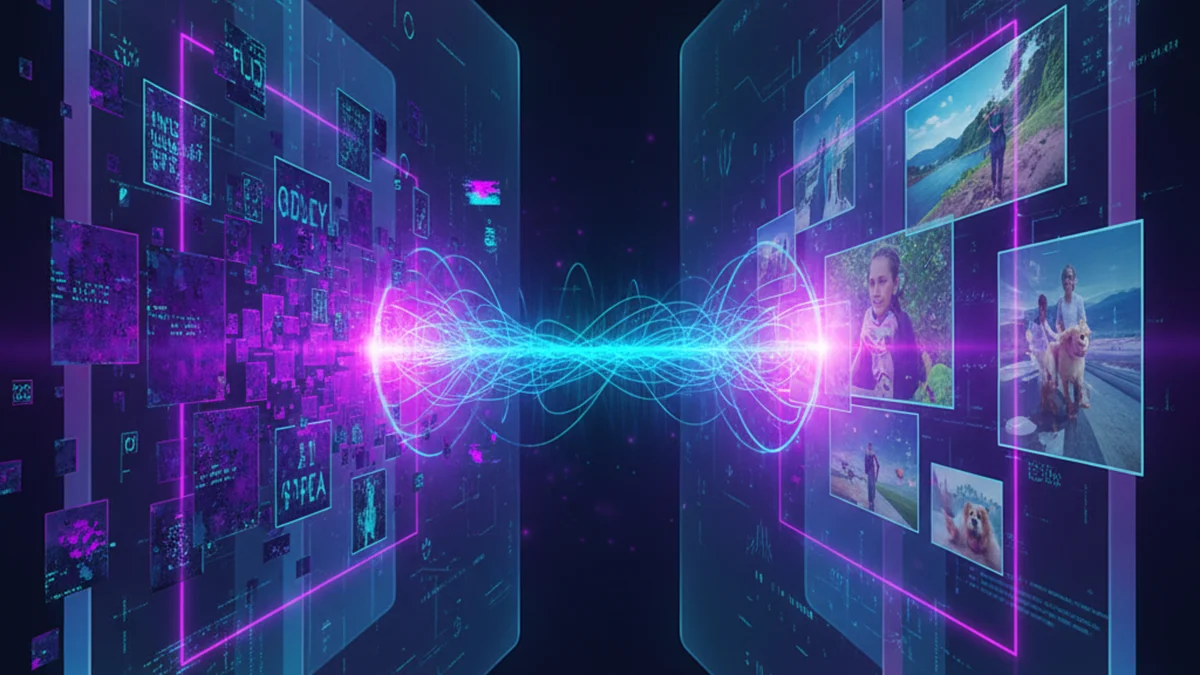
MIUI Decrypt illustration: visualizing the moment an LSAV file opener splits the encrypted container and releases the video stream inside.
You found an .lsav file on a Xiaomi, Redmi, or POCO phone and tried the most obvious thing: double-click it. Nothing useful happened. VLC may say that the input cannot be opened. QuickTime may ignore it. Windows Media Player may report that the file type is unsupported. Online video converters usually reject it before upload finishes. Even FFmpeg cannot identify a playable stream if you point it directly at the file. You can preview your LSAV file (requires a free account) without installing anything.
That failure is expected. An .lsav file is not an MP4 with a strange extension. It is an encrypted MIUI Gallery Secret Album video container. The original video stream is inside the file, but it is wrapped in metadata, protected with authenticated encryption, and stored in a form that ordinary video software is not designed to interpret. A normal media player looks for video headers, frame tables, codec markers, and audio tracks. An LSAV container gives it a ZIP-style wrapper and encrypted bytes.
This guide explains how an LSAV file opener works in practice. You will learn what is inside the container, why renaming the file never helps, where MIUI stores Secret Album videos, how to open the file with LSA Decrypt, what errors mean, and how to store the restored MP4 safely afterward. The focus is practical recovery: getting from an opaque .lsav file to a standard video that plays anywhere.
What is an .lsav file?
LSAV stands for Local Storage Archive Video. MIUI Gallery uses it for videos moved into the Secret Album vault. Photos use the related .lsa extension; videos use .lsav. Both formats serve the same purpose: keep media content private even if someone copies raw files from the phone's internal storage.
When you move a video into Secret Album, MIUI does not merely hide the MP4 in a folder with a dot prefix. It creates a new encrypted container under MIUI/Gallery/cloud/secretAlbum/. The visible filename is often a long hash rather than the camera's original VID_... name. That is normal. The original name and media properties are kept inside metadata that the opener reads later.
The important point is that .lsav is a container format, not a video codec. It can hold video originally encoded as H.264 or H.265, audio such as AAC, and timing data that belongs in an MP4 file. But those media streams are not directly accessible until the LSAV wrapper has been parsed and the encrypted payload has been decrypted.
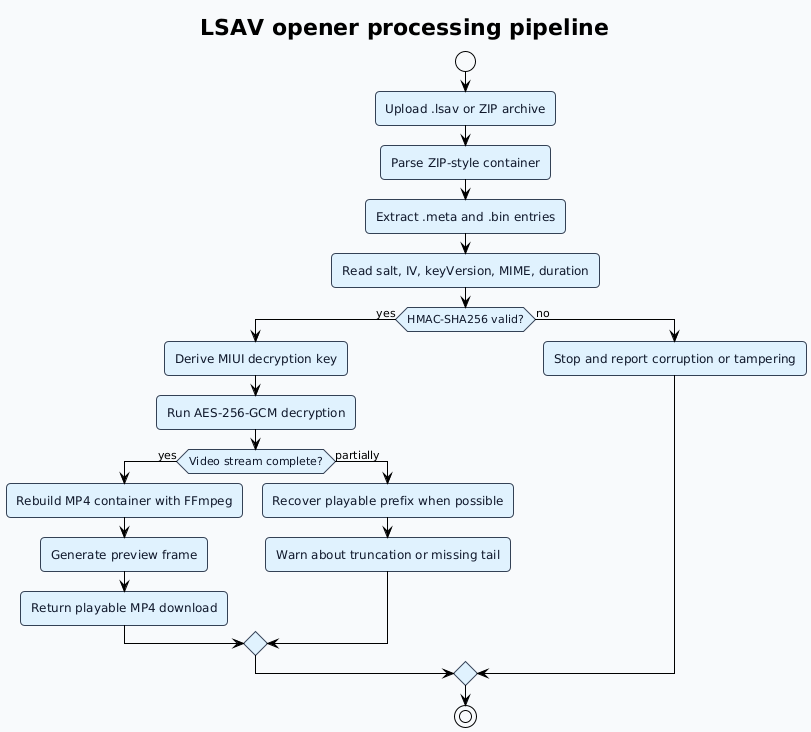
In practical terms, an LSAV opener needs to do three jobs that a media player does not do. First, it must understand the MIUI container layout. Second, it must validate the metadata and integrity signature before attempting decryption. Third, it must rebuild the decrypted bytes into a normal MP4 container so that video players can seek, sync audio, and display duration correctly.
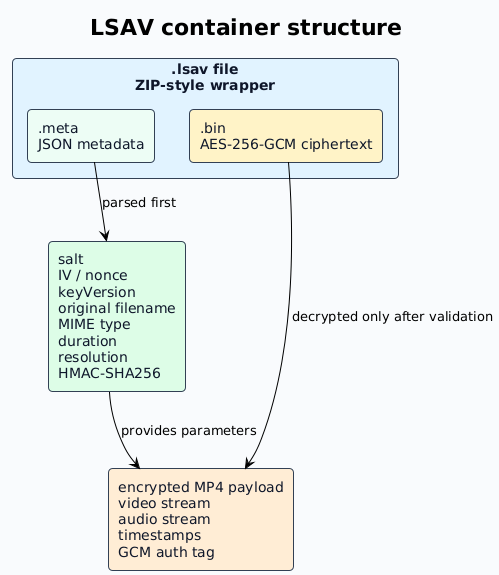
An .lsav file is a wrapper around metadata and encrypted video bytes. The metadata describes how to validate and decrypt the payload; the payload becomes playable only after successful decryption.
Inside the .lsav container: metadata, payload, and integrity checks
A useful way to think about an .lsav file is as a sealed evidence bag. The outside tells you that there is something inside, but it does not expose the content. The metadata label explains how the content was sealed; the encrypted payload contains the video; the integrity signature confirms whether the bag was damaged or modified after it was created.
The first layer is a ZIP-style archive wrapper. This is why a hex editor may show the familiar 50 4B 03 04 signature near the beginning of the file. That signature can mislead people into thinking the file is just a renamed ZIP archive. It is not. Even if an unzip tool can list or extract entries, the main binary entry remains encrypted. Extracting it manually gives you ciphertext, not a playable MP4.
The metadata entry is usually a JSON document. It can include the original filename, MIME type, size, duration, resolution, orientation, key version, salt, initialization vector, and an integrity value. Exact field names can vary between MIUI and HyperOS builds, but the role is consistent: the opener needs this block before it can safely process the encrypted data.
The binary entry contains the encrypted media payload. For videos, that payload is much more demanding than a photo payload. It may include a long video stream, one or more audio streams, frame timing information, and container fragments that need to be reassembled. That is why LSAV processing usually takes longer than LSA photo processing. The cryptography is only part of the work; the decrypted result also has to be packaged into a video file that players can seek through reliably.
Integrity checking matters because Secret Album files are often recovered from unstable situations: a phone that will not boot, a half-finished USB copy, a cloud sync conflict, or a factory-reset backup made in a hurry. A valid HMAC-SHA256 signature tells the opener that the metadata and payload still match. If that check fails, the file may be truncated, modified, paired with the wrong metadata, or copied incompletely. A careful opener reports that problem instead of returning a broken video with silent corruption.
Why VLC, QuickTime, and Windows Media Player cannot open .lsav files
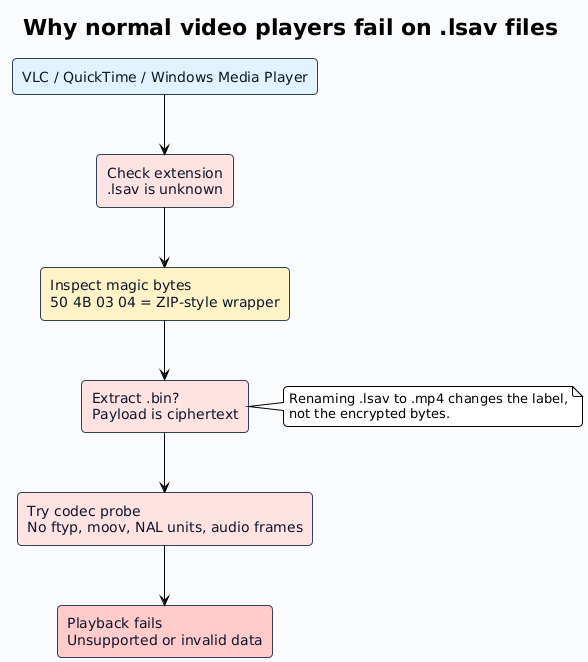
Video players identify files by inspecting structure, not by trusting the extension alone. A normal MP4 contains boxes such as ftyp, moov, and mdat. MKV starts with an EBML header. MOV files use a QuickTime container layout. Inside those containers, players expect codec-specific data such as H.264 NAL units, H.265 parameter sets, audio sample tables, timestamps, and keyframe indexes.
An .lsav file does not present those structures at the top level. A player sees an unknown extension, then a wrapper that does not look like a video container, then encrypted data. The encrypted payload has high entropy and no recognizable video rhythm. There are no visible frame boundaries, no readable audio packets, and no seek table. From the player's perspective, the file is either unsupported or invalid.
Renaming the file does not change this. If you rename abc123.lsav to abc123.mp4, the first bytes inside the file still describe the MIUI wrapper, not an MP4. If you rename it to .zip, you may expose the internal entries, but the video entry still contains AES-GCM ciphertext. If you pass that ciphertext to FFmpeg, FFmpeg has no key, no IV, and no metadata context, so it cannot produce frames.
This is also why generic "repair video" utilities do not solve LSAV playback. Repair tools can sometimes rebuild a damaged MP4 when the file is already decrypted and the video stream is visible. They cannot recover encrypted bytes without the LSAV metadata and the correct decryption process.
Media players fail before playback begins because the LSAV file does not expose MP4 structures or codec data. The opener must decrypt and rebuild the video first.
Where to find .lsav files on Xiaomi, Redmi, and POCO phones
Secret Album videos are normally stored in the same directory tree as Secret Album photos:
On Windows, connect the phone with a USB cable, unlock it, choose File Transfer or MTP, and open the device from File Explorer. The folder is usually visible under Internal shared storage. Copy the entire secretAlbum folder if you are unsure which file is the video. LSAV files can be large, so wait for the transfer to finish before disconnecting the cable.
On macOS, use Android File Transfer, OpenMTP, or another MTP browser because Finder cannot browse Android internal storage directly. On Linux, many desktop environments mount MTP devices automatically; if not, tools such as jmtpfs or go-mtpfs can expose the same folder path.
If the phone still boots but the Gallery app is broken, a file-manager copy is usually enough. If the phone does not boot, you may still be able to extract the directory through ADB recovery, TWRP, or a full userdata image depending on device state and encryption. Our guide to recovering Secret Album files from a non-booting Xiaomi phone covers those routes in more detail.
Before uploading, check that the file size is plausible. A few seconds of 1080p video may be tens of megabytes. A longer 4K recording can be hundreds of megabytes or more. A file that appears as 0 bytes, a few kilobytes, or suspiciously small compared with the expected clip length may be a placeholder, a failed copy, or a truncated recovery artifact.
How to open and play an .lsav video step by step
The safest workflow is to leave the original LSAV file unchanged, copy it to a stable location, upload that copy for processing, and download the restored MP4. Do not edit the container before decryption. Even a small byte-level change can invalidate the integrity signature and turn a recoverable file into a failing one.
Confirm the extension and source folder. The file should end with .lsav and should come from MIUI/Gallery/cloud/secretAlbum/. If you received the file from someone else, ask for the original container rather than a renamed copy. A file called video.mp4.lsav may still be valid, but a file that has passed through messaging apps or cloud preview tools may have been altered.
Make a local backup before processing. Keep one untouched copy in a separate folder. Work with a second copy. This is especially important if the file came from a damaged device, because you may only get one clean extraction attempt.
Open the decrypt page. Go to lsadecrypt.online/en/decrypt. For small supported files, the guest flow may be enough. For larger LSAV videos, sign in so the job can use the video processing limits and credit-based flow shown by the app.
Upload the file or a ZIP archive. Drag the .lsav file into the upload area. If you have many videos, place them in a ZIP archive first. The service will detect supported entries and process them as separate jobs.
Watch validation complete. The service reads the wrapper, extracts the metadata, checks required fields, and verifies the integrity signature. If the file is not an MIUI Secret Album video or is badly truncated, the job will stop here with an actionable error instead of wasting time on impossible decryption.
Wait for video reconstruction. After decryption, the service rebuilds a normal MP4 container. This stage matters because a decrypted video stream still needs timestamps, duration, audio sync, and seek information before desktop players can handle it smoothly.
Download and test the MP4. Open the result in VLC or your system player. Scrub near the beginning, middle, and end. If the file plays cleanly across those points, the recovery is complete. Move the MP4 to permanent storage before the temporary download link expires.
A proper LSAV opener validates the file before decrypting it, then rebuilds a standard MP4 instead of handing raw decrypted fragments to the user.
How long does LSAV decryption take?
LSAV decryption time depends on four things: upload speed, file size, server queue length, and whether the file is intact. The cryptographic step is usually predictable, but video jobs include extra work around storage, preview generation, and MP4 reconstruction. A short clip can finish quickly; a large 4K video naturally takes longer because there are more bytes to upload, validate, decrypt, and remux.
For small clips, the upload often takes more time than the actual decryption. For large clips, the rebuild phase becomes more noticeable because the service must preserve audio sync and timestamp continuity. For damaged files, processing time can vary because the service may attempt partial recovery or spend time determining exactly where the container stops being valid.
Typical LSAV processing time grows with upload size and reconstruction work. Damaged files are less predictable because validation or partial recovery may stop early.
Troubleshooting: what common LSAV opener errors mean
Most failures fall into a small number of categories. Understanding which category you are seeing helps you decide whether to retry, copy the file again, or look for another backup.
Unsupported file type
This usually means the uploaded file is not a MIUI Secret Album LSAV container. It may be a normal video with the wrong extension, a cloud placeholder, a thumbnail, or a file from an unrelated app that happens to use a similar extension. Go back to the source folder and copy the original file again.
Missing metadata
The opener found a wrapper but could not find the metadata needed for decryption. This can happen when a manual unzip/repack operation removed entries, when a recovery tool restored only part of the archive, or when the file was interrupted during transfer. The best fix is to recopy the file from the phone or from a full backup.
HMAC or integrity verification failed
The metadata and payload do not match. A single changed byte can trigger this error, which is exactly what authenticated encryption is designed to detect. Check whether the file size matches the original copy. If you have multiple backups of the same folder, try the copy with the largest plausible size and the most recent modification date.
Decryption completed but playback has missing tail frames
This points to truncation near the end of the payload. The recovered MP4 may contain a playable prefix while the last seconds or minutes are missing. If the content is important, keep the partial result but also search for another copy on the original phone, in a PC backup, in a cloud sync folder, or in a full userdata extraction.
Audio is out of sync
Audio drift can happen when timestamps are damaged or when the source video used variable frame rate metadata that was partially lost. Try opening the result in VLC first, because it is tolerant of unusual timing data. If the issue appears only in one player, the MP4 may still be valid while that player has limited support for the source codec or timing mode.
For broader recovery symptoms, including empty Secret Album folders and failed Gallery exports, see the MIUI Gallery troubleshooting guide.
What quality should you expect after opening an .lsav file?
LSA Decrypt is a decrypt-and-restore workflow, not a video compressor. The goal is to return the media stream MIUI stored, not to create a smaller derivative. When the LSAV container is intact, the output MP4 should preserve the original resolution, codec, audio, and duration characteristics of the Secret Album video.
That means a 4K source should remain 4K, a 1080p source should remain 1080p, and the codec should typically stay H.264 or H.265 depending on the device and camera settings. Audio is usually AAC with the same channel layout MIUI stored. Slow-motion and variable-frame-rate recordings may carry timing details that need careful remuxing, but they should not be intentionally downscaled or re-encoded as part of decryption.
If the restored video looks blocky, frozen, incomplete, or visibly different from what you remember, consider the source condition first. Secret Album encryption does not improve or degrade quality; it only hides the bytes. Visible defects after opening usually mean the source recording already had those defects, the LSAV file was truncated, or the device generated unusual camera metadata that a specific player handles poorly.
Security and privacy after decrypting an LSAV video
The restored MP4 is easier to use, but it is also less protected. Once the video leaves the MIUI Secret Album container, it becomes a normal media file. Anyone with access to the download folder, backup disk, cloud account, or shared computer profile may be able to open it without a Xiaomi password.
Treat the decrypted result as sensitive until you decide otherwise. Move it out of the browser downloads folder. Rename it clearly so you do not lose track of it. Store it on an encrypted drive, in an encrypted archive, or in a cloud service with client-side encryption if the content is private. Delete temporary copies once you have confirmed that the permanent copy opens correctly.
If your goal was only to verify that the Secret Album video is recoverable, you can import the MP4 back into MIUI Gallery on a working phone and move it into Secret Album again. MIUI will create a new encrypted container for that device state. Keep in mind that factory resets, account changes, and device migrations can affect future access, so maintain a separate backup strategy. The Secret Album backup before factory reset guide explains how to avoid losing access during resets.
About the author
MIUI Decrypt Support publishes practical guidance for MIUI Secret Album recovery, Xiaomi privacy, and .lsa/.lsav troubleshooting so users can make informed decisions before they upload.
Every blog article is designed to match the product experience: clear explanations, realistic recovery expectations, and a direct path back to the decrypt workflow.
Related articles
Explore more MIUI Gallery recovery guides from the LSA Decrypt team.
Upload the encrypted .lsav file and LSA Decrypt will verify the container, decrypt the video stream, and hand you back a standard MP4 you can play anywhere.